Category: Jupyter

  • First Experiment with SHAP Visualizations

    First Experiment with SHAP Visualizations

    In my previous post, I touched on model explainability. One approach for feature attribution is called SHAP, SHapley Additive exPlanations. In this post I will cover my first experiment with SHAP, building on one of my previous notebooks. My GitHub repo containing all of my Jupyter notebooks can be found here: GitHub – wcaubrey/learning-naive-bayes.

    What is SHAP

    SHAP (SHapley Additive Explanations) is a powerful technique for interpreting machine learning models by assigning each feature a contribution value toward a specific prediction. It’s grounded in Shapley values from cooperative game theory, which ensures that the explanations are fair, consistent, and additive.

    What SHAP Does

    • It calculates how much each feature “adds” or “subtracts” from the model’s baseline prediction.
    • It works both locally (for individual predictions) and globally (across the dataset).
    • It produces visualizations like force plots, summary plots, and dependence plots.

    What SHAP Is Good For

    • Trust-building: Stakeholders can see why a model made a decision.
    • Debugging: Helps identify spurious correlations or data leakage.
    • Fairness auditing: Reveals if certain features disproportionately affect predictions for specific groups.
    • Feature attribution: Quantifies the impact of each input on the output.

    Ideal Use Cases

    • Tree-based models (e.g., XGBoost, LightGBM, Random Forest)
    • High-stakes domains like healthcare, education, finance, and policy
    • Any scenario where transparency and accountability are critical

    My notebook changes

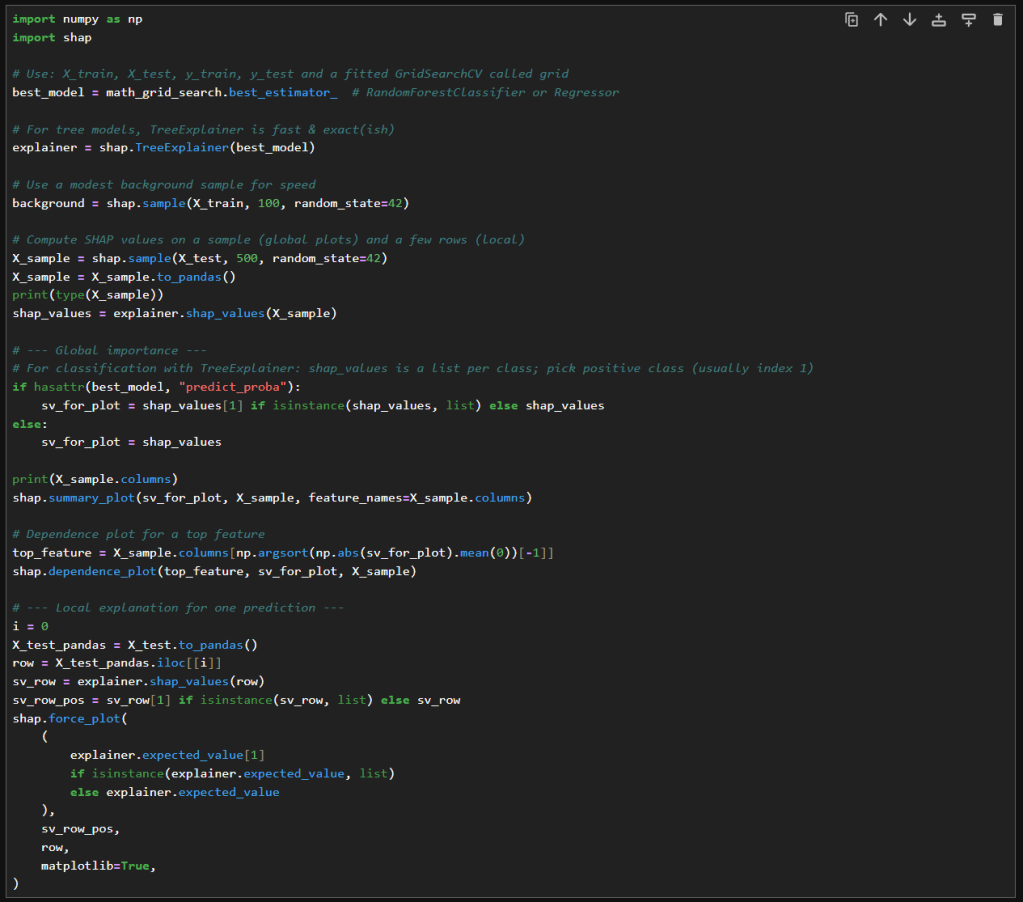
    In this new cell, I use the results of the previous grid search to create a SHAP TreeExplainer from the shap package. With that I create three different types of plots: a summary beeswarn, dependence and force plot.

    SHAP Visualizations

    Interpreting the summary beeswarm plot

    The x-axis shows the SHAP values. Positive values push the prediction higher, towards the positive class or higher score. Negative values push the prediction lower.

    The y-axis shows the features, ranked by overall importance. The most important features are at the top. The spread of SHAP values shows how much influence that feature can have. The wider the spread of dots along the x-axis, the more variability that feature contributes to predictions. Narrow spreads mean the feature has a consistent, smaller effect.

    Each dot represents a single observation for the feature. The color of the dots shows the feature value. Red for high values and blue for low.

    If high feature values (red dots) cluster on the right (positive SHAP values), then higher values of that feature increase the prediction. If high values cluster on the left, then higher values decrease the prediction. Blue dots (low feature values) show the opposite effect.

    Overlapping colors can suggest interactions. For example, if both high and low values of a feature appear on both sides, the feature’s effect may depend on other variables.

    Interpreting the force plot

    The base value is the average model prediction if no features were considered. It’s like the starting point. It is the neutral prediction before considering any features.

    Arrows or bars are the force each feature contributes positively or negatively to the prediction. Each feature either increases or decreases the prediction. The size of the arrow/bar shows the magnitude of its effect.

    • Red (or rightward forces): Push the prediction higher.
    • Blue (or leftward forces): Push the prediction lower.

    The final prediction is the sum of the baseline plus all feature contributions. The endpoint shows the model’s actual output for that instance

    – William

    References

  • Hyperparameter tuning with RandomizedSearchCV

    Hyperparameter tuning with RandomizedSearchCV

    In my previous post, I explored how GridSearchCV can systematically search through hyperparameter combinations to optimize model performance. While powerful, grid search can quickly become computationally expensive, especially as the number of parameters and possible values grows. In this follow-up, I try a more scalable alternative: RandomizedSearchCV. By randomly sampling from the hyperparameter space, this method offers a faster, more flexible way to uncover high-performing configurations without the exhaustive overhead of grid search. Let’s dive into how RandomizedSearchCV works, when to use it, and how it compares in practice.

    What is RandomizedSearchCV

    Unlike GridSearchCV, which exhaustively tests every combination of hyperparameters, RandomizedSearchCV takes a more efficient approach by sampling a fixed number of random combinations from a defined parameter space. This makes it useful when the search space is large or when computational resources are limited. By trading exhaustive coverage for speed and flexibility, RandomizedSearchCV often finds competitive, or even superior, parameter sets with far fewer evaluations. It’s a smart way to explore hyperparameter tuning when you want faster insights without sacrificing rigor.

    Hyperparameter Tuning with RandomizedSearchCV

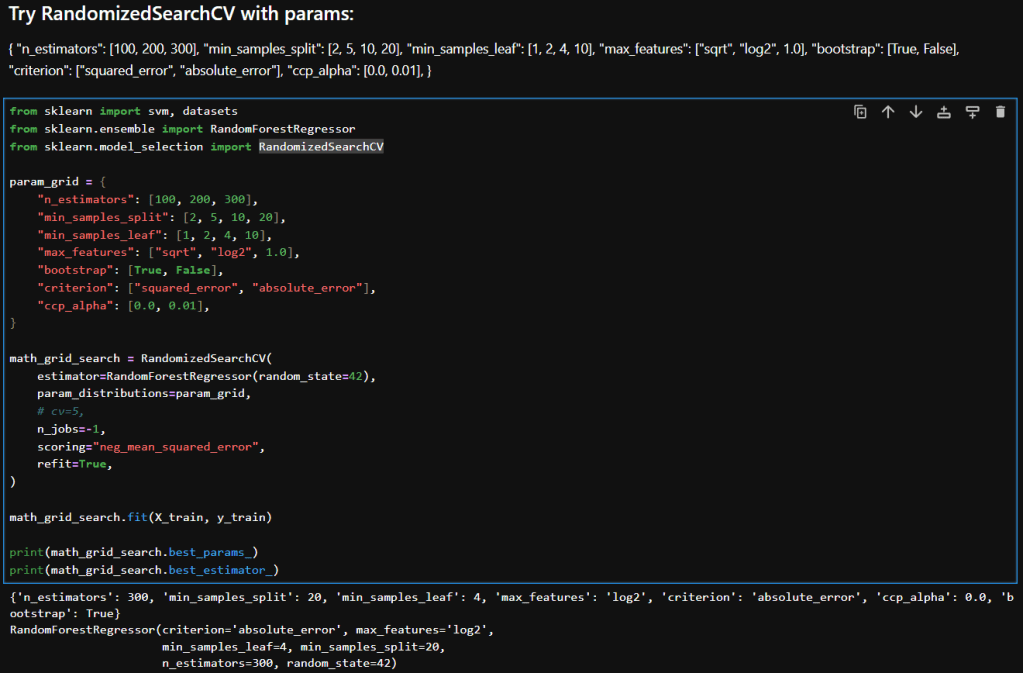
    Here’s a breakdown of each parameter in my param_distributions for RandomizedSearchCV when tuning a RandomForestRegressor:

    ParameterDescription
    n_estimators [100, 200, 300]Number of trees in the forest. More trees can improve performance but increase training time.
    min_samples_split [2, 5, 10, 20]Minimum number of samples required to split an internal node. Higher values reduce model complexity and help prevent overfitting.
    min_samples_leaf [1, 2, 4, 10]Minimum number of samples required to be at a leaf node. Larger values smooth the model and reduce variance.
    max_features ["sqrt", "log2", 1.0]Number of features to consider when looking for the best split. "sqrt" and "log2" are common heuristics; 1.0 uses all features.
    bootstrap [True, False]Whether bootstrap samples are used when building trees. True enables bagging; False uses the entire dataset for each tree.
    criterion ["squared_error", "absolute_error"]Function to measure the quality of a split. "squared_error" (default) is sensitive to outliers; "absolute_error" is more robust.
    ccp_alpha [0.0, 0.01]Complexity parameter for Minimal Cost-Complexity Pruning. Higher values prune more aggressively, simplifying the model.

    Interpretation

    Here is a table that compares the results in my previous post where I experimented with GridSearchCV with what I achieved while using RandomizedSearchCV.

    MetricGridSearchCVRandomizedSearchCVImprovement
    Mean Squared Error (MSE)173.39161.12↓ 7.1%
    Root Mean Squared Error (RMSE)13.1712.69↓ 3.6%
    R² Score0.27160.3231↑ 18.9%

    Interpretation & Insights

    Lower MSE and RMSE:
    RandomizedSearchCV yielded a model with noticeably lower error metrics. The RMSE dropped by nearly half a point, indicating better predictions. While the absolute reduction may seem modest, it’s meaningful in contexts where small improvements translate to better decision-making or cost savings.

    Higher R² Score:
    The R² score improved from 0.27 to 0.32, a relative gain of nearly 19%. This suggests that the model tuned via RandomizedSearchCV explains more variance in the target variable—an encouraging sign of better generalization.

    Efficiency vs Exhaustiveness:
    GridSearchCV exhaustively evaluated all parameter combinations, which can be computationally expensive and potentially redundant. In contrast, RandomizedSearchCV sampled a subset of combinations and still outperformed grid search. This underscores the value of strategic randomness in high-dimensional hyperparameter spaces.

    Model Robustness:
    The improved metrics hint that RandomizedSearchCV may have landed on a configuration that better balances bias and variance—possibly due to more diverse sampling across parameters like min_samples_leaf, criterion, and ccp_alpha.

    Takeaways

    RandomizedSearchCV not only delivered better predictive performance but did so with greater computational efficiency. When I ran GridSearchCV with as many parameters to explore, it ran for a long time. In contrast, RandomizedSearchCV returned almost instantaneously in comparison. For large or complex models like RandomForestRegressor, this approach offers a good balance between exploration and practicality. It’s a great reminder that smarter search strategies can outperform brute-force methods—especially when paired with thoughtful parameter ranges.

    – William

  • Trying my hand at Hyperparameter tuning with GridSearchCV

    Trying my hand at Hyperparameter tuning with GridSearchCV

    In this post, I’ll try using scikit’s GridSearchCV to optimize hyperparameters. GridSearchCV is a powerful tool in scikit-learn that automates the process of hyperparameter tuning by exhaustively searching through a predefined grid of parameter combinations. It evaluates each configuration using cross-validation, allowing you to identify the settings that yield the best performance. It doesn’t guarantee the globally optimal solution, but GridSearchCV provides a reproducible way to improve model accuracy, reduce overfitting, and better understand how a model responds to different parameter choices

    Hyperparameter Tuning with GridSearchCV

    First Attempt

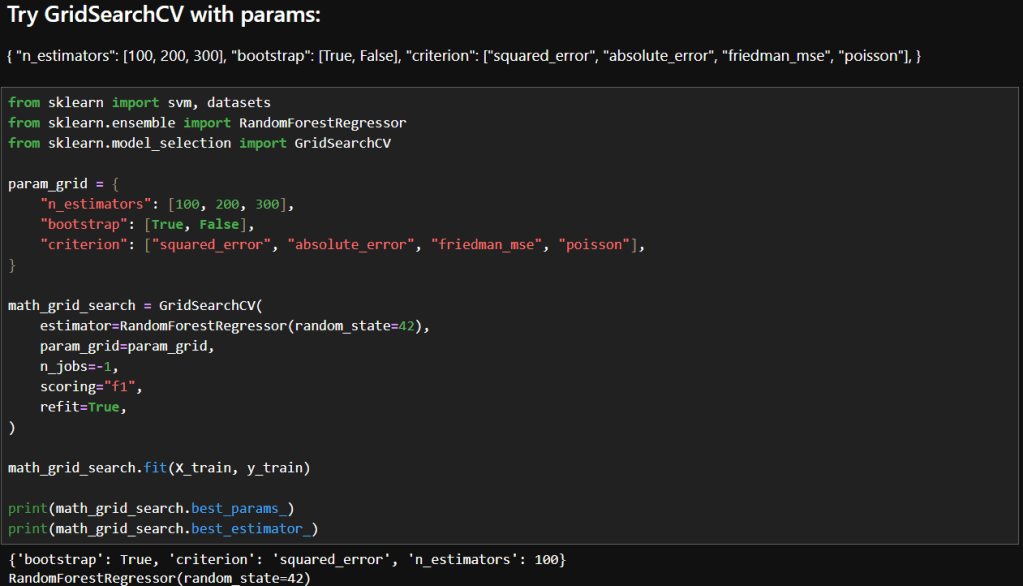
    The images below show the initial parameters I used in my GridSearchCV experimentation and the results. Based on my reading, I decided to try just a few parameters to start. Here are the parameters I chose to start with and a brief description of why I felt each was a good place to start.

    ParameterDescriptionWhy It’s a Good Starting Point
    n_estimatorsNumber of trees in the forestControls model complexity and variance; 100–300 is a practical range for balancing performance and compute.
    bootstrapWhether sampling is done with replacementTests the impact of bagging vs. full dataset training—can affect bias and variance. Bagging means each decision tree in the forest is trained on a random sample of the training data.
    criterionFunction used to measure the quality of a splitOffers diverse loss functions to explore how the model fits different error structures.

    You may recall in my earlier post that I achieved these results during manual tuning:
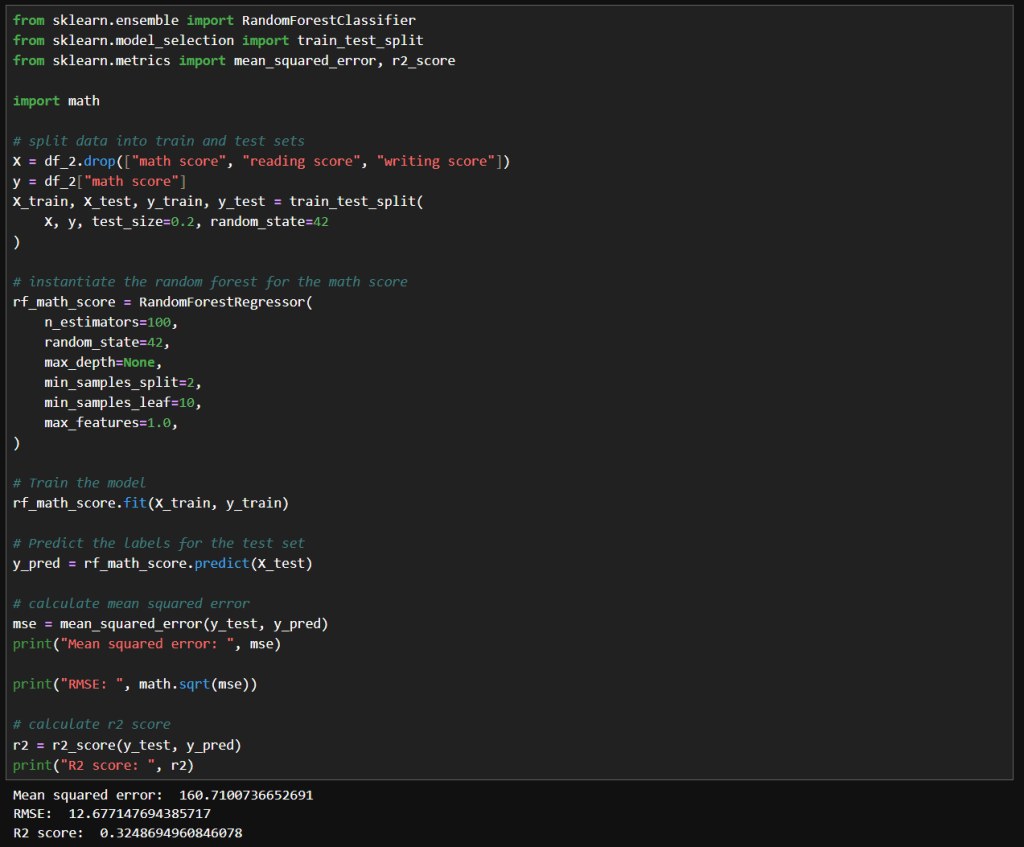
    Mean squared error: 160.7100736652691
    RMSE: 12.677147694385717
    R2 score: 0.3248694960846078

    Interpretation

    My Manual Configuration Wins on Performance

    • Lower MSE and RMSE: Indicates better predictive accuracy and smaller average errors.
    • Higher R²: Explains more variance in the target variable.

    Why Might GridSearchCV Underperform Here?

    • Scoring mismatch: I used "f1" as the scoring metric, which I discovered while reading, is actually for classification! So, the grid search may have optimized incorrectly. Since I’m using a regressor, I should use "neg_mean_squared_error" or "r2".
    • Limited search space: My grid only varied n_estimators, bootstrap, and criterion. It didn’t explore other impactful parameters like min_samples_leaf, max_features, or max_depth.
    • Default values: GridSearchCV used default settings for parameters like min_samples_leaf=1, which could lead to overfitting or instability.

    Second Attempt

    In this attempt, I changed the scoring to neg_mean_squared_error. What that does is, it returns the negative of the mean squared error, which makes GridSearchCV minimize the mean square error (MSE). That in turn means that GridSearchCV will choose parameters that minimize large deviations between predicted and actual values.

    So how did that affect results? The below images show what happened.

    While the results aren’t much better, they are more valid because it was a mistake to use F1 scoring in the first place. Using F1 was wrong because:

    • The F1 score is defined for binary classification problems. and I am fitting continuous outputs.
    • F1 needs discrete class labels, not continuous outputs.
    • When used in regression, scikit-learn would have forced predictions into binary labels, which distorts the optimization objective.
    • Instead of minimizing prediction error, it tried to maximize F1 on binarized outputs.

    Reflections

    • The "f1"-optimized model accidentally landed on a slightly better MSE, but this is not reliable or reproducible.
    • The "neg_mean_squared_error" model was explicitly optimized for MSE, so its performance is trustworthy and aligned with my regression goals.
    • The small difference could simply be due to random variation or hyperparameter overlap, not because "f1" is a viable scoring metric here.

    In summary, using "f1" in regression is methodologically invalid. Even if it produces a superficially better score, it’s optimizing the wrong objective and introduces unpredictable behavior.

    In my next post I will try some more parameters and also RandomizedSearchCV.

    – William

  • Playing with Hyperparameter Tuning and Winsorizing

    Playing with Hyperparameter Tuning and Winsorizing

    In this post, I’ll revisit my earlier model’s performance by experimenting with hyperparameter tuning, pushing beyond default configurations to extract deeper predictive power. I’ll also take a critical look at the data itself, exploring how winsorizing outliers can recalibrate outliers without sacrificing the integrity of the data. The goal: refine, rebalance, and rethink accuracy.

    Hyperparameter Tuning

    The image below shows my initial experiment with the RandomForestRegressor. As you can see, I used the default value for n_estimators.

    The resulting MSE, RMSE and R² score are shown. In my earlier post I noted what those values mean. In summary:

    • An MSE of 172 indicates there may be outliers.
    • An RMSE of 13 indicates there an average error of around 13 points on 0–100 scale.
    • An R² of 0.275 means my model explains just 27.5% of the variance in the target variable.

    Experimentation

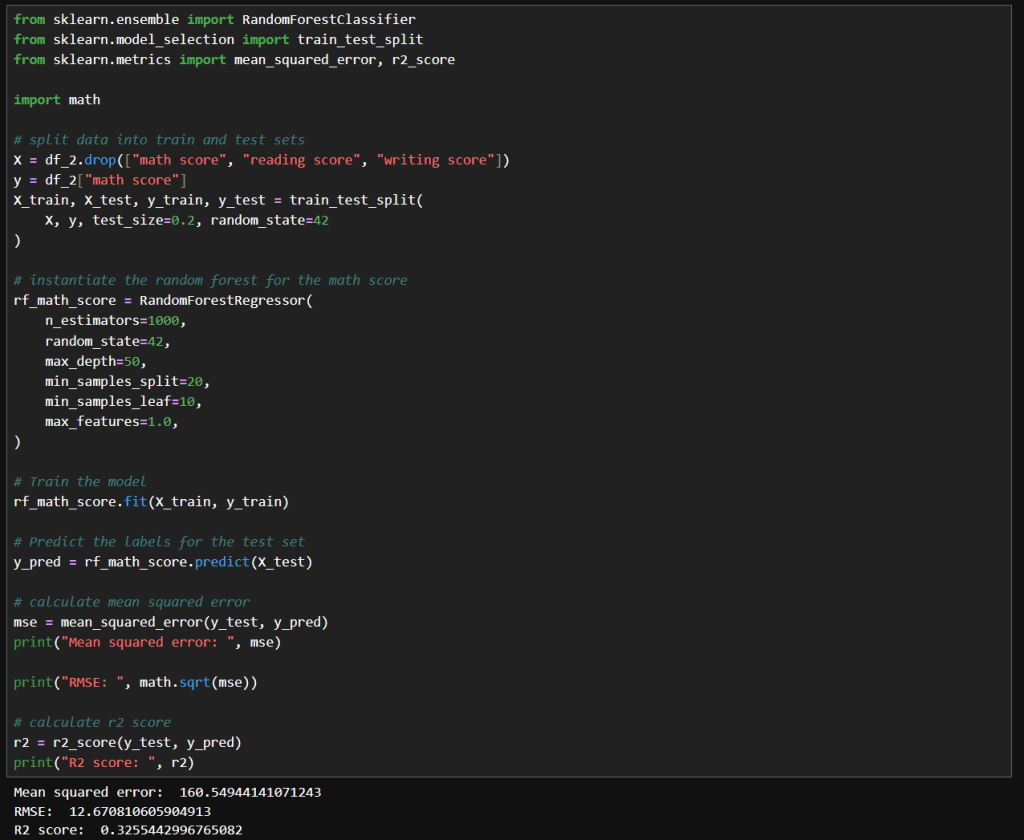
    My first attempt at manual tuning looked like the image below. There really is just a small improvement with these parameters. I tried increasing n_estimators significantly because the accuracy should be improved with the larger value. I tried increasing max_depth to 50 to see if that compares to the default value of None. I tried increasing min_samples_split to 20 and min_samples_leaf of 10 to see if it would help with any noise in the data. I didn’t really need to set max_features to 1.0, because that is currently the default value.

    The net result was slightly better results, but nothing too significant.

    Next, I tried what is shown in the image below. Interestingly, I got very similar results to the above. With these values, the model trains much faster while achieving the same results.

    Winsorizing

    Winsorization changes a dataset by replacing outlier values with less extreme ones. Unlike trimming (which removes outliers), winsorization preserves the dataset size by limiting values at the chosen threshold.

    Here is what my code looks like:

    In this cell, I’ve replaced the math score data a winsorized version. I used the same hyperparameters as before. Here we can see a more significant improvement MSE and RMSE, but a slightly lower R² score.

    That means that since the earlier model has a slightly higher R², it explains a bit more variance relative to the total variance of the target variable. Maybe because it models the core signal more tightly, even though it has noisier estimates.

    The winsorized model, with its lower MSE and RMSE indicate better overall prediction accuracy. This is nice when minimizing absolute error matters the most.

    Final Thoughts

    After experimenting with default settings, I systematically adjusted hyperparameters and applied winsorization to improve my RandomForestRegressor’s accuracy. Here’s a concise overview of the three main runs:

    • Deep, Wide Forest
      • Parameters
        • max_depth: 50
        • min_samples_split: 20
        • min_samples_leaf: 10
        • max_features: 1.0
        • random_state: 42
      • Insights
        • A large ensemble with controlled tree depth and higher split/leaf thresholds slightly reduced variance but yielded only marginal gains over defaults.
    • Standard Forest with Unlimited Depth
      • Parameters
        • max_depth: None
        • min_samples_split: 2
        • min_samples_leaf: 10
        • max_features: 1.0
        • random_state: 42
      • Insights
        • Reverting to fewer trees and no depth limit produced nearly identical performance, suggesting diminishing returns from deeper or wider forests in this setting.
    • Winsorized Data
      • Parameters
        • n_estimators: 100
        • max_depth: None
        • min_samples_split: 2
        • min_samples_leaf: 10
        • max_features: 1.0
        • random_state: 42
        • Applied winsorization to cap outliers
      • Insights
        • Winsorizing outliers drastically lowered absolute error (MSE/RMSE), highlighting its power for stabilizing predictions. The slight drop in R² reflects reduced target variance after capping extremes.

    – William

  • Using Random Forests to analyze student performance

    Using Random Forests to analyze student performance

    In this post, I’ll walk through my first notebook exploring random forests. I’m using a dataset I found on Kaggle. It can be found here: https://www.kaggle.com/datasets/whenamancodes/students-performance-in-exams/data.

    This is a small, simulated dataset that contains data for gender, ethnicity, the level of education attained by the parents, the lunch (free or standard), whether the student took test preparation courses and the scores for math, reading and writing.

    I’ll try my hand at using random forests to understand the importance of various features on student performance.

    Step 1: Clean up the data

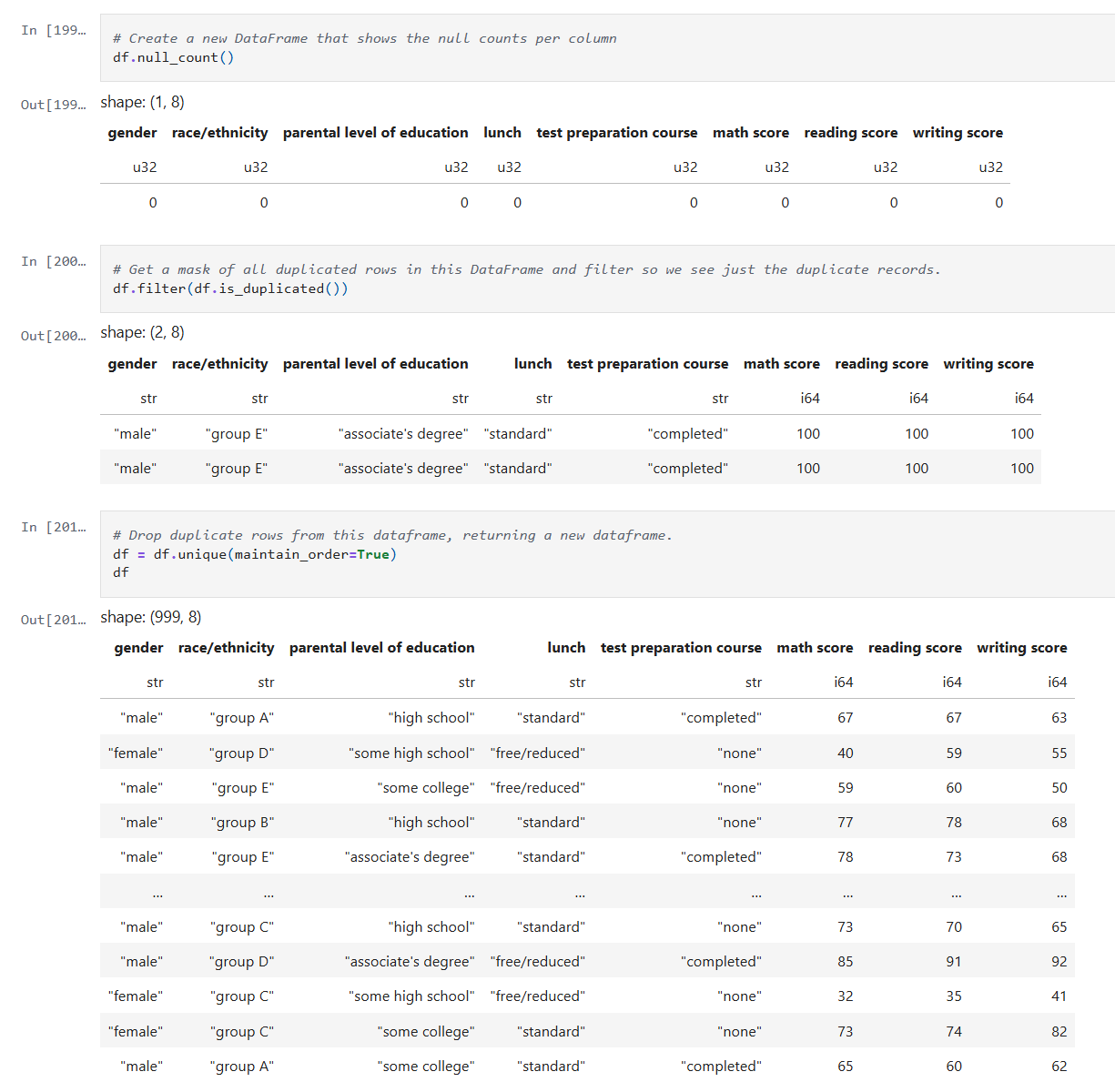
    After reading the data into a Dataframe, we do a quick check on the quality of the data. I check for simple things like empty values and duplicates using Polars APIs.

    Below is the code from our notebook cell:

    In these cells:

    • Check for null data.
    • Check for duplicate rows and remove the duplicates.

    This makes sure we correct and, or remove any bad data before we start processing.

    Step 2: Inspect the data

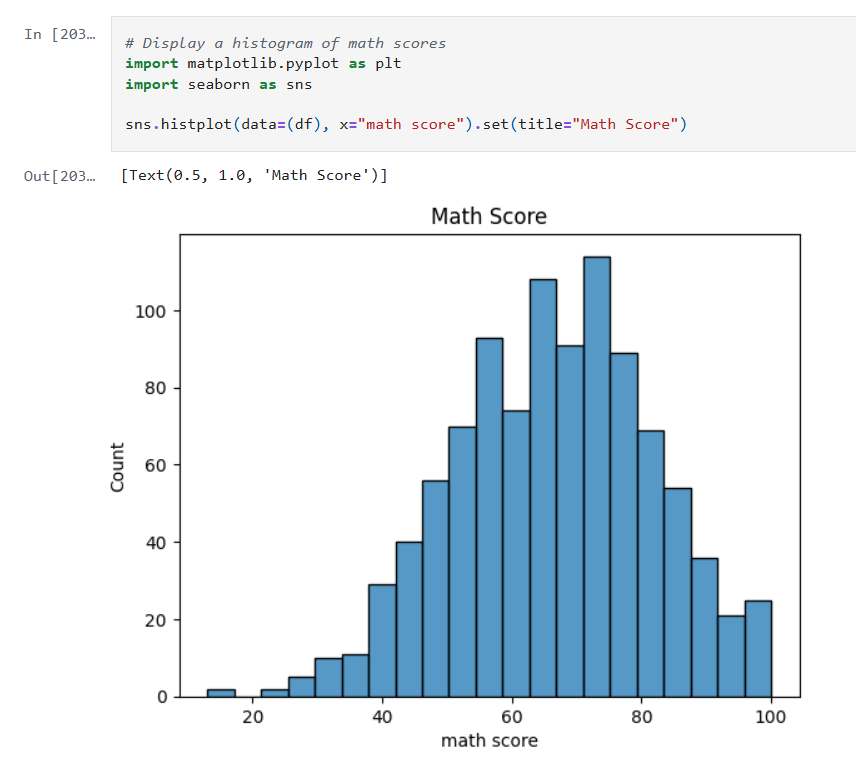
    Now that the data is cleaned up, we can create some visualizations of the data. The first I’ll create are some histograms of the math, reading and writing scores. Histograms are one of the most foundational, and surprisingly powerful, visual tools in a data scientist’s toolkit.

    Below is the code from three notebook cells to generate the histograms:

    Histograms allow us to:

    • See whether the data is symmetrical or not.
    • See if there are a lot of outliers that could impact model performance.

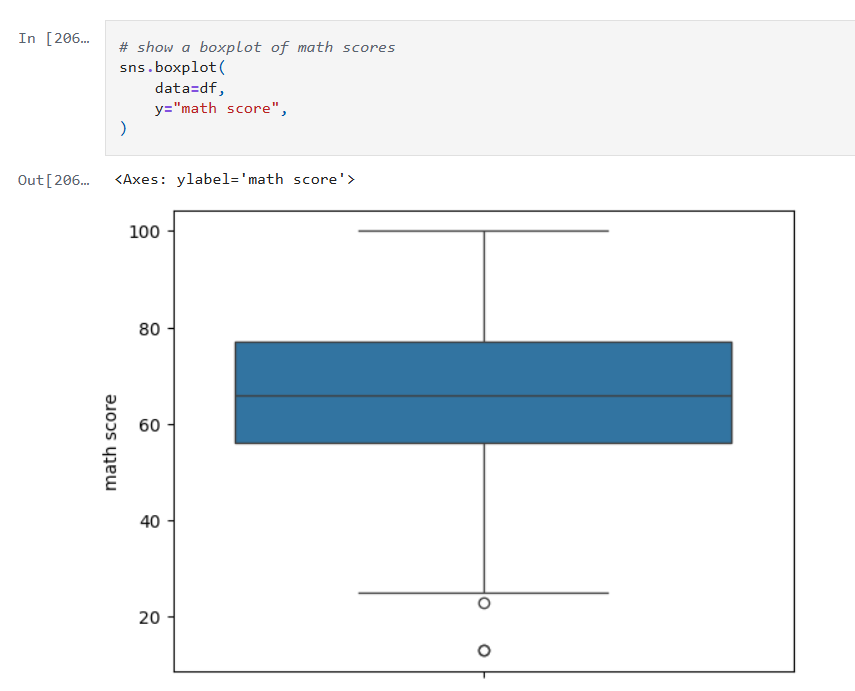
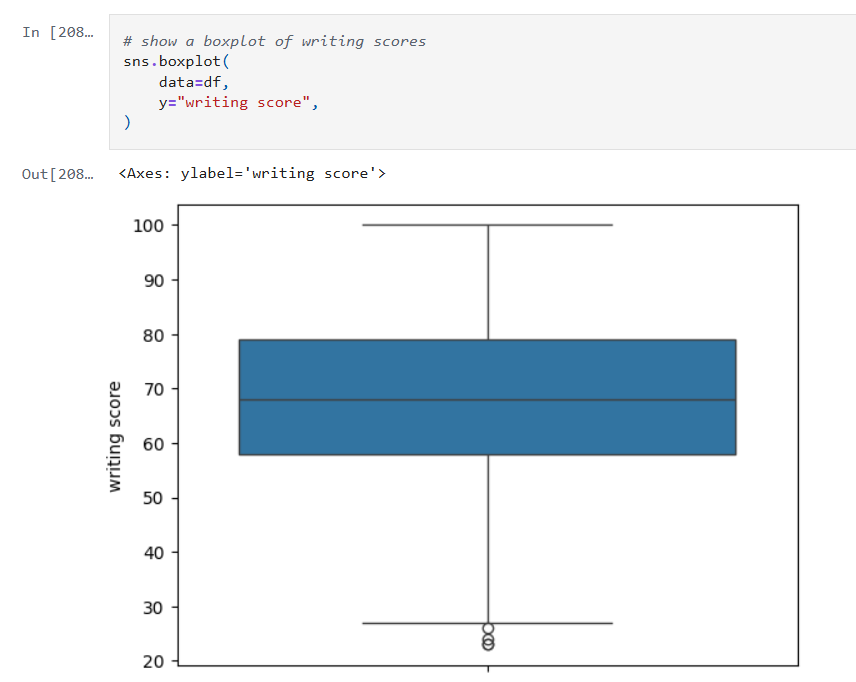
    Next we’ll look at some boxplots. Boxplots are good for summarizing the distribution of the data.

    Boxplots allow us to visualize:
    • The median value of our features. The median represents the central tendency.
    • The interquartile range (IQR), showing the middle 50% of data.
    • The min and max values (excluding outliers).
    • Data outliers. Outliers are represented by the circles outside of 1.5 * the IQR.
    • Assess skewness. We can see of the median is very close to the top or bottom of the box.

    Next, we’ll look a heatmap. Heatmaps (or heatplots) are really powerful data visualizations, they let you see relationships between variables at a glance, especially when you’re dealing with large datasets or multiple features.

    Heatmaps allow us to visualize:

    • Correlations: Bright colors show strong positive or negative correlations while faded or neutral colors imply weak or no relationship.
    • Spotting Patterns: We can quickly identify where performance clusters, or drops, occur.
    • Identifying Anomalies: Visual blips can point to data quality problems.

    Step 3: Encoding Categorical Variables

    The next step is to convert our categorical columns to a numeric format using scikit-learn’s LabelEncoder.

    Below is the code from our notebook cell:

    In that cell:

    • I instantiate a LabelEncoder object.
    • I get the names of the columns that need to be encoded by iterating over the columns in the dataframe and filtering where the type of the column is a string.
    • I create encoded data for each of those columns with a new name appended with “_num”.
    • Lastly I create a new dataframe that combines the new columns I created with the original dataframe.

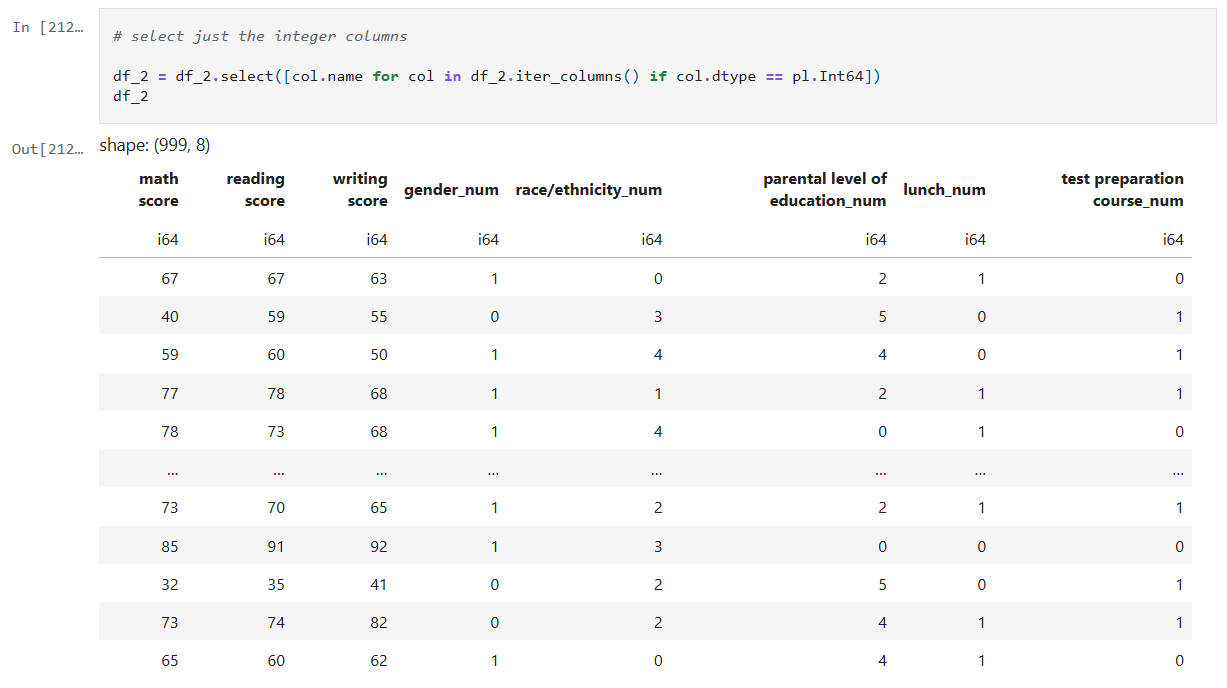
    Step 4: Remove the non-numeric columns

    This is a simple step, where I simply select the columns that are integers.

    Below is the code from our notebook cell:

    In that cell:

    • Iterate over the columns, filtering where the type is integer and use that list in the select function.

    Now we can create a heatmap that includes the encoded data too.

    Step 5: Train models for math, reading and writing

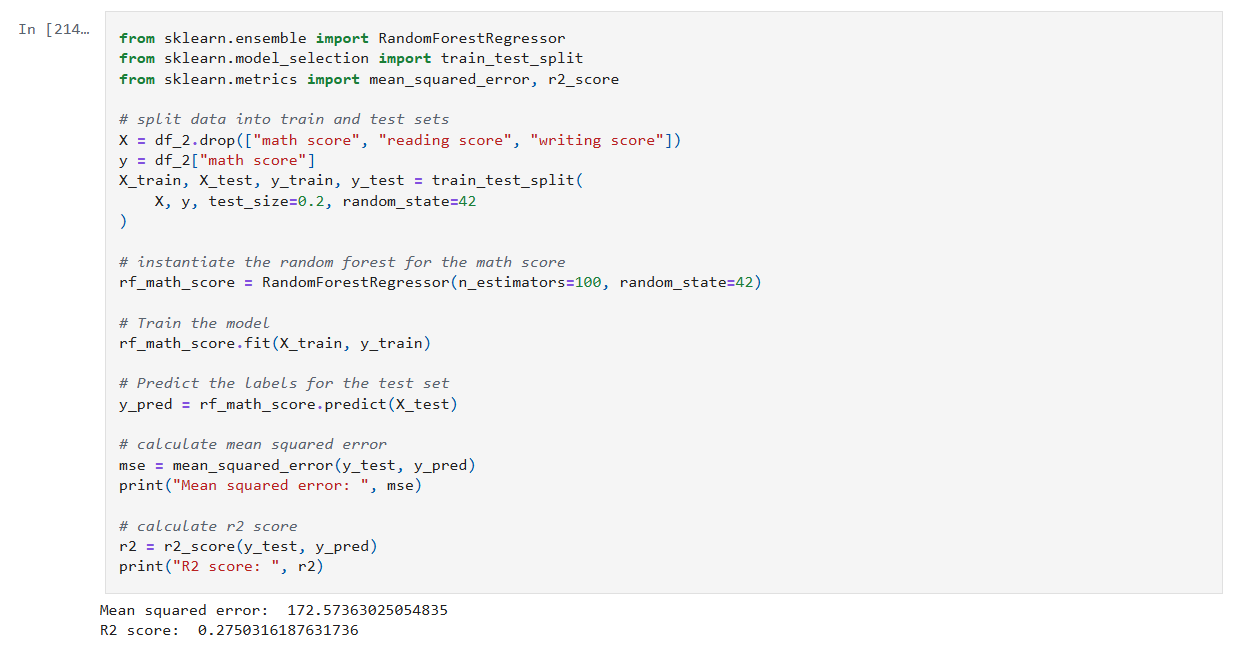
    Now it’s time to build, train, and evaluate our model. I repeat this step for each of the math, reading and writing scores. I’ll only show the math cell here as they do the same thing.

    In that cell:

    • Drop the score columns from the dataframe.
    • Choose “math score” as my category column.
    • Split the data and create a RandomForestRegressor model.
    • Train the model against the data.
    • Use the model to predict values and measure the accuracy.

    The r2 score gives a sense of how well the predictors capture the ups-and-downs in your target. Or: How much better is my model at predicting Y than just guessing the average of Y every time?

    • R² = 1: indicates a perfect fit.
    • R² = 0: the model is no better than predicting the mean.
    • R² < 0: the model is worse than the mean.

    Step 6: Visualize feature importance to the math score

    Now we can create a histogram to visualize the relative importance of our features to the math score.

    In that cell:

    • I grab all the feature columns.
    • Map the columns to the models feature_importances_ value.
    • Generate a plot.
    The higher the value in feature_importances_, the more important the feature.

      Final Thoughts and Next Steps

      In this first step into learning about Random Forests we can see they are powerhouse in the world of data science. Random Forests are built on the idea of “wisdom of the crowd”, by combining many decision trees trained on random subsets of data and features, they reduce overfitting and improve generalization.

      The new Jupyter notebook can be found here in my GitHub.

      – William

    • Experimenting with Model Stacking on Student Alcohol Consumption Data

      Experimenting with Model Stacking on Student Alcohol Consumption Data

      In this blog post, I’m building on my previous work with the Student Alcohol Consumption dataset on Kaggle. My latest experiments can be found in the updated Jupyter notebook. In this updated analysis, I explored several new approaches—including using linear regression, stacking models, applying feature transformations, and leveraging visualization—to compare model performances in both prediction and classification scenarios.

      Recap: From the Previous Notebook

      Before diving into the latest experiments, here’s a quick overview of what I did earlier:

      • I explored using various machine learning algorithms on the student alcohol dataset.
      • I identified promising model combinations and created baseline plots to display their performance.
      • My earlier analysis provided a solid framework for experimentation with stacking and feature transformation techniques.

      This post builds directly on that foundation.

      Experiment 1: Using Linear Regression

      Motivation:

      I decided to try a linear regression model because it excels at predicting continuous numerical values—like house prices or temperature. In this case, I was curious to see how well it could predict student grades or scaled measures of drinking behavior.

      What I Did:
      • I trained a linear regression model on the dataset.
      • I applied a StandardScaler to ensure that numeric features were well-scaled.
      • The predictions were then evaluated by comparing them visually (using plots) and numerically to other approaches.
      Observation:

      Interestingly, the LinearRegression model, when calibrated with the StandardScaler, yielded better results than using Gaussian Naive Bayes (GNB) alone. A plot of the predictions against actual values made it very clear that the linear model provided smoother and more reliable estimates.

      Experiment 2: Stacking Gaussian Naive Bayes with Linear Regression

      Motivation:

      I wanted to experiment with stacking models that are generally not used together. Despite the literature primarily avoiding a combination of Gaussian Naive Bayes with linear regression, I was intrigued by the possibility of capturing complementary characteristics of both:

      • GNB brings in a generative, probabilistic perspective.
      • Linear Regression excels in continuous predictions.
      What I Did:
      • I built a stacking framework where the base learners were GNB and linear regression.
      • Each base model generated predictions, which were then used as input (meta-features) for a final meta-model.
      • The goal was to see if combining these perspectives could offer better performance than using either model alone.
      Observation:

      Stacking GNB with linear regression did not appear to improve results over using GNB alone. The combined predictions did not outperform linear regression’s stand-alone performance, suggesting that in this dataset the hybrid approach might have introduced noise rather than constructive diversity in the predictions.

      Experiment 3: Stacking Gaussian Naive Bayes with Logistic Regression

      Motivation:

      While exploring stacking architectures, I found that combining GNB with logistic regression is more common in the literature. Since logistic regression naturally outputs calibrated probabilities and aligns well with classification tasks, I hoped that:

      • The generative properties of GNB would complement the discriminative features of logistic regression.
      • The meta-model might better capture the trade-offs between these approaches.
      What I Did:
      • I constructed a stacking model where the two base learners were GNB and logistic regression.
      • Their prediction probabilities were aggregated to serve as inputs to the meta-learner.
      • The evaluation was then carried out using test scenarios similar to those in my previous notebook.
      Observation:

      Even though the concept seemed promising, stacking GNB with logistic regression did not lead to superior results. The final performance of the stack was not significantly better than what I’d seen with GNB alone. In some cases, the combined output underperformed compared to linear regression alone.

      Experiment 4: Adding a QuantileTransformer

      Motivation:

      A QuantileTransformer remaps features to follow a uniform or a normal distribution, which can be particularly useful when dealing with skewed data or outliers. I introduced it into the stacking pipeline because:

      • It might help models like GNB and logistic regression (which assume normality) to produce better-calibrated probability outputs.
      • It provides a consistent, normalized feature space that might enhance the meta-model’s performance.
      What I Did:
      • I added the QuantileTransformer as a preprocessing step immediately after splitting the data.
      • The transformed features were used to train both the base models and the meta-learner in the stacking framework.
      Observation:

      Surprisingly, the introduction of the QuantileTransformer did not result in a noticeable improvement over the GNB results without the transformer. It appears that, at least under my current experimental settings, the transformed features did not bring out the expected benefits.

      Experiment 5: Visualizing Model Results with Matplotlib

      Motivation:

      Visual analysis can often reveal trends and biases that plain numerical summaries might miss. Inspired by examples on Kaggle, I decided to incorporate plots to:

      • Visually compare the performance of different model combinations.
      • Diagnose potential issues such as overfitting or miscalibration.
      • Gain a clearer picture of model behavior across various scenarios.
      What I Did:
      • I used Matplotlib to plot prediction distributions and error metrics.
      • I generated side-by-side plots comparing the predictions from linear regression, the stacking models, and GNB alone.
      Observation:

      The plots proved invaluable. For instance, a comparison plot clearly highlighted that linear regression with StandardScaler outperformed the other approaches. Visualization not only helped in understanding the behavior of each model but also served as an effective communication tool for sharing results.

      Experiment 6: Revisiting Previous Scenarios with the Stacked Model

      Motivation:

      To close the loop, I updated my previous analysis function to use the stacking model that combined GNB and logistic regression. I reran several test scenarios and generated plots to directly compare these outcomes with earlier results.

      What I Did:
      • I modified the function that earlier produced performance plots.
      • I then executed those scenarios with the new stacked approach and documented the differences.
      Observation:

      The resulting plots confirmed that—even after tuning—the stacked model variations (both with linear regression and logistic regression) did not surpass the performance of linear regression alone. While some combinations were competitive, none managed to outshine the best linear regression result that I had seen earlier.

      Final Thoughts and Conclusions

      This journey into stacking models, applying feature transformations, and visualizing the outcomes has been both enlightening and humbling. Here are my key takeaways:

      • LinearRegression Wins (for Now): The linear regression model, especially when combined with a StandardScalar, yielded better results compared to using GNB or any of the stacked variants.
      • Stacking Challenges:
        • GNB with Linear Regression: The combination did not improve performance over GNB alone.
        • Stacking GNB with Logistic Regression: Although more common in literature, this approach did not lead to a significant boost in performance in my first attempt.
      • QuantileTransformer’s Role: Despite its promise, the QuantileTransformer did not produce the anticipated improvements. Its impact may be more nuanced or require further tuning.
      • Visualizations Are Game Changers: Adding plots was immensely helpful to better understand model behavior, compare the effectiveness of different approaches, and provide clear evidence of performance disparities.
      • Future Directions: It’s clear that further experimentation is necessary. I plan to explore finer adjustments and perhaps more sophisticated stacking strategies to see if I can bridge the gap between these models.

      In conclusion, while I was hoping that combining GNB with logistic regression would yield better results, my journey shows that sometimes the simplest approach—in this case, linear regression with proper data scaling—can outperform more complex ensemble methods. I look forward to further refinements and welcome any ideas or insights from the community on additional experiments I could try.

      I hope you found this rundown as insightful as I did during the experimentation phase. What do you think—could there be yet another layer of transformation or model combination that might tip the scales? Feel free to share your thoughts, and happy modeling!

      – William

    • Exploring the Impact of Alcohol Consumption on Student Grades with Gaussian Naive Bayes

      Exploring the Impact of Alcohol Consumption on Student Grades with Gaussian Naive Bayes

      In today’s data-driven world, even seemingly straightforward questions can reveal surprising insights. In this post, I investigate whether students’ alcohol consumption habits bear any relationship to their final math grades. Using the Student Alcohol Consumption dataset from Kaggle, which contains survey responses on a myriad aspects of students’ lives—ranging from study habits and social factors to gender and alcohol use—I set out to determine if patterns exist that can predict academic performance.

      Dataset Overview

      The dataset originates from a survey of students enrolled in secondary school math and Portuguese courses. It includes rich, social, and academic information, such as:

      • Social and family background
      • Study habits and academic support
      • Alcohol consumption details during weekdays and weekends

      I focused on predicting the final math grade (denoted as G3 in the raw data) while probing how alcohol-related features, especially weekend consumption, might play a role in performance. The binary insight wasn’t just about whether students drank, but which drinking pattern might be more telling of their academic results.

      Data Preprocessing: Laying the Groundwork

      Before diving into modeling, the data needed some cleanup. Here’s how I systematically prepared the dataset for analysis:

      1. Loading the Data: I imported the CSV into a Pandas DataFrame for easy manipulation.
      2. Renaming Columns: Clarity matters. I renamed ambiguous columns for better readability (e.g., renaming walc to weekend_alcohol and dalc to weekday_alcohol).
      3. Label Encoding: Categorical data were converted to numeric representations using scikit-learn’s LabelEncoder, ensuring all features could be numerically processed.
      4. Reusable Code: I encapsulated the training and testing phases within a reusable function, which made it straightforward to test different feature combinations.

      Here’s are some snippets:

      In those cells:

      • I rename columns to make them more readable.
      • I instantiate a LabelEncoder object and encode a list of columns that have string values.
      • I add an absence category to normalize absence count a little due to how variable that data is.

      Experimenting With Gaussian Naive Bayes

      The heart of this exploration was to see how well a Gaussian Naive Bayes classifier could predict the final math grade based on different selections of features. Naive Bayes, while greatly valued for its simplicity and speed, operates under the assumption that features are independent—a condition that might not fully hold in educational data.

      Training and Evaluation Function

      To streamline the experiments, I wrote a function that:

      • Splits the data into training and testing sets.
      • Trains a GaussianNB model.
      • Evaluates accuracy on the test set.

      In that cell:

      • I create a function that:
        • Drops unwanted columns.
        • Runs 100 training cycles with the given data.
        • Captures the accuracy measured from each run and returns the average.

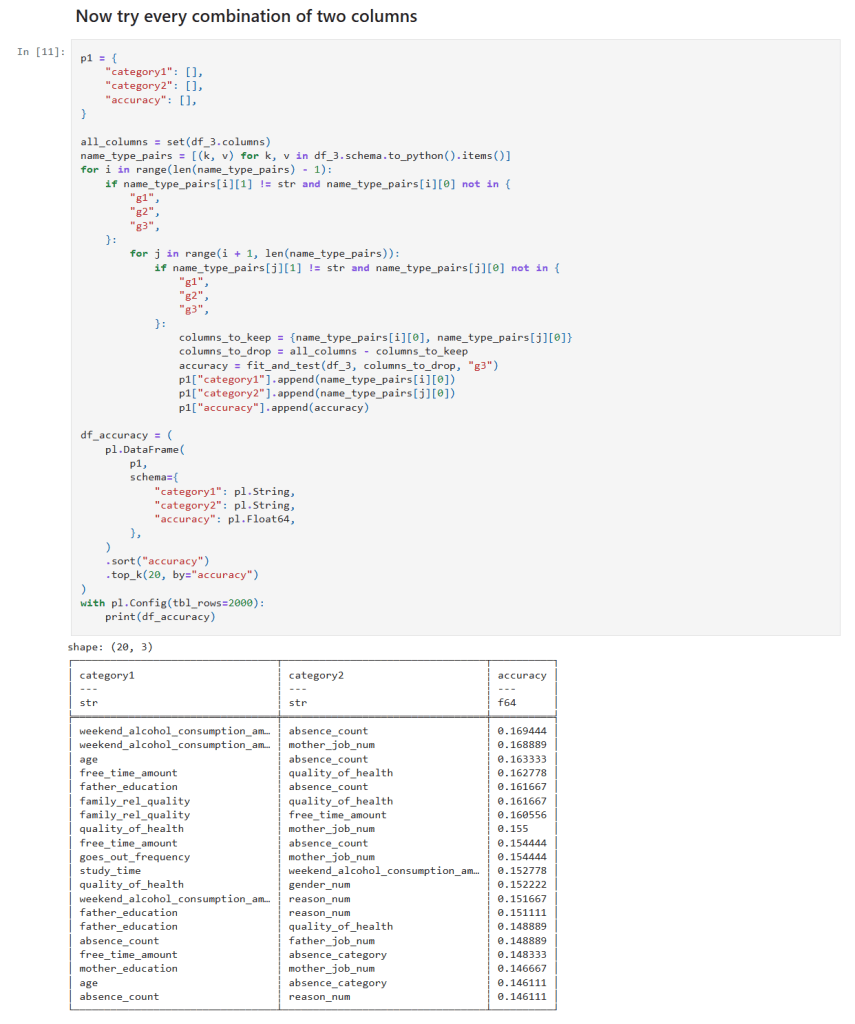
      Single and Two column sampling

      In those cells:

      • I get a list of all columns.
      • I create loop(s) over the column list and create a list of features to test.
      • I call my function to measure the the accuracy of the features at predicting student grades.

      Diving Into Feature Combinations

      I aimed to assess the predictive power by testing different combinations of features:

      1. All Columns: This gave the best accuracy of around 22%, yet it was clear that even the full spectrum of information struggled to make strong predictions.
      2. Handpicked Features: I manually selected features that I hypothesized might be influential. The resulting accuracy dipped below that of the full dataset.
      3. Individual Features: Evaluating each feature solo revealed that the column indicating whether students planned to pursue higher education yielded the highest individual accuracy—though still far lower than all features combined.
      4. Two-Feature Combinations: By testing all pairs, I noticed that combinations including weekend alcohol consumption appeared in the top 20 predictive pairs four times, including in both of the top two.
      5. Three-Feature Combinations: The trend became stronger—combinations featuring weekend alcohol consumption topped the list ten times and were present in each of the top three combinations!
      6. Four-Feature Combinations: Here, weekend alcohol consumption featured in the top 20 combination results even more robustly—15 times in total.

      These experiments showcased one noteworthy pattern: weekend alcohol consumption consistently emerged as a common denominator in the best-performing feature combinations, while weekday consumption rarely made an appearance.

      Analysis of the Findings

      Several key observations emerged from this series of experiments:

      • Predictive Accuracy: Even with the full set of features, the best accuracy reached was only around 22%. This underwhelming performance is indicative of the challenges posed by the dataset and the restrictive assumptions embedded within the Naive Bayes model.
      • Role of Alcohol Consumption: The repeated appearance of weekend alcohol consumption in high-ranking feature combinations suggests a potential association—it may capture lifestyle or social habits that indirectly correlate with academic performance. However, it is not a standalone predictor; rather, it seems to be relevant as part of a multifactorial interaction.
      • Model Limitations: The Gaussian Naive Bayes classifier assumes feature independence. The complexities inherent in student performance—where multiple social, educational, and psychological factors interact—likely violate this assumption, leading to lower predictive performance.

      Conclusion and Future Directions

      While the Gaussian Naive Bayes classifier provided some interesting insights, especially regarding the recurring presence of weekend alcohol consumption in influential feature combinations, its overall accuracy was modest. Predicting the final math grade, a multifaceted outcome influenced by numerous interdependent factors, appears too challenging for this simplistic probabilistic model.

      Next Steps:

      • Alternative Machine Learning Algorithms: Investigating other approaches like decision trees, random forests, support vector machines, or ensemble methods may yield better performance.
      • Enhanced Feature Engineering: Incorporating interaction terms or domain-specific features might help capture the complex relationships between social habits and academic outcomes.
      • Broader Data Explorations: Diving deeper into other factors—such as study habits, parental support, and extracurricular involvement—could provide additional clarity.

      Final Thoughts and Next Steps

      This journey reinforced the idea that while Naive Bayes is a great tool for its speed and interpretability, it might not be the best choice for all datasets. More sophisticated models and careful feature engineering are necessary when dealing with some datasets like student academic performance.

      The new Jupyter notebook can be found here in my GitHub.

      – William

    • Leveraging Scikit-Learn and Polars to Test a Naive Bayes Classifier

      Leveraging Scikit-Learn and Polars to Test a Naive Bayes Classifier

      In today’s post, I use scikit-learn with the same sample dataset I used in the previous post. I need to use the LabelEncoder to encode the strings as numeric values and then the GaussianNB to train and testing a Gaussian Naive Bayes classifier model and to predict the class of an example record. While many tutorials use pandas, I use Polars for fast data manipulation alongside scikit-learn for model development.

      Understanding Our Data and Tools

      Remember that the dataset includes ‘features’ for height, weight, foot size. It also has a categorical field for gender. Because classifiers like Gaussian Naive Bayes require numeric inputs, I need to transform the string gender values into a numeric format.

      In my new Jupyter notebook I use two libraries:

      Scikit-Learn for its machine learning utilities. Specifically, LabelEncoder for encoding and GaussianNB for classification.

      Polars for fast, efficient DataFrame manipulations.

      Step 1: Encoding Categorical Variables

      The first step is to convert our categorical column (gender) to a numeric format using scikit-learn’s LabelEncoder. This conversion is vital because machine learning models generally can’t work directly with string labels.

      Below is the code from our first notebook cell:

      In that cell:

      • I instantiate a LabelEncoder object.
      • For every feature in columns_to_encode (in this case, just "gender"), I create a new Polars Series with the suffix "_num", containing the encoded numeric values.
      • Finally, I add these series as new columns to our original DataFrame.

      This ensures that our categorical data is transformed into a machine-friendly format, an also preserves the human-readable string values for future reference.

      Step 2: Mapping Encoded Values to Original Labels

      Once we’ve encoded the data, it’s important to retain the mapping between the original string values and their corresponding numeric codes. This mapping is particularly useful when you want to interpret or display the model’s predictions.

      The following code block demonstrates how to generate and view this mapping:

      In that cell:

      • I save the original "gender" column and its encoded counterpart "gender_num".
      • By grouping on "gender" and aggregating with the first encountered numeric value, I create a mapping from string labels to numerical codes.

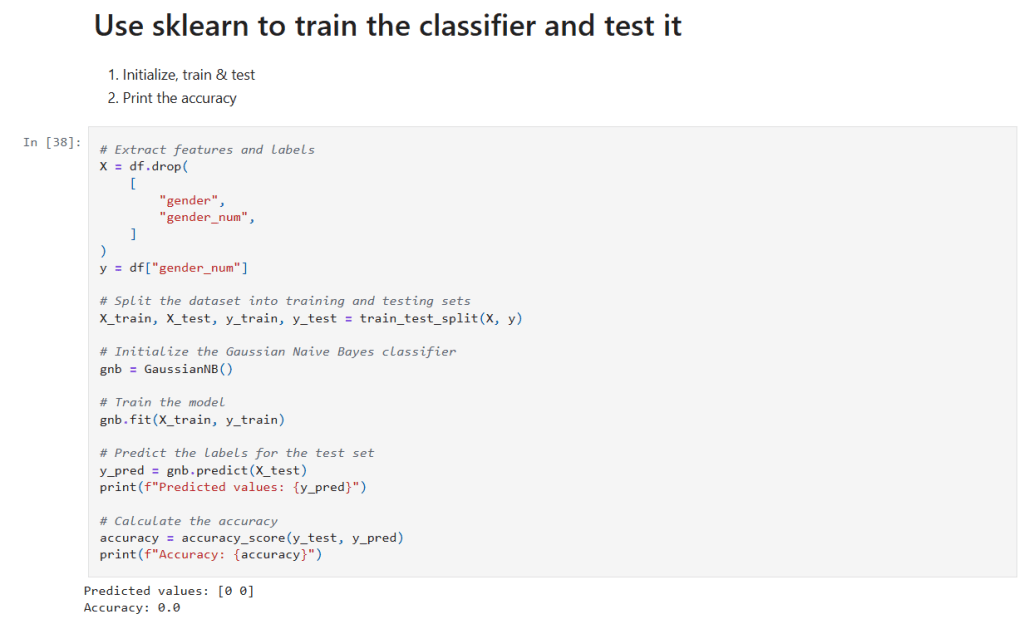
      Step 3: Training and Testing the Gaussian Naive Bayes Classifier

      Now it’s time to build, train, and evaluate our model. I separate the features and target, split the data, and then initialize the classifier.

      In that cell:

      • Get the data to use in training: I drop the raw "gender" and its encoded version from the Dataframe (X) and save the encoded classification in (y).
      • Data Splitting: train_test_split is used to randomly partition the data into training and testing sets.
      • Model Training: A GaussianNB classifier is instantiated and trained on the training data using the fit() method.
      • Prediction and Evaluation: The model’s predictions on the test set (y_pred) are generated and compared against the true labels using accuracy_score. This gives us a quantitative measure of the model’s performance.

      Step 4: Classifying a New Record

      Now I can test it on the sample observation. Consider the following code snippet:

      In that cell:

      • Create Example Data: I define a new sample record (with features like height, weight, and foot size) and create a Polars DataFrame to hold this record.
      • Prediction: The classifier is then used to predict the gender (encoded as a number) for this new record.
      • Decoding: Use the gender_mapping to display the human-readable gender label corresponding to the model’s prediction.

      Final Thoughts and Next Steps

      This step-by-step notebook shows how to preprocess data, map categorical values, train a Gaussian Naive Bayes classifier, and test new data with the combination of Polars and scikit-learn.

      The new Jupyter notebook can be found here in my GitHub. If you follow the instructions in my previous post you can run this notebook for yourself.

      – William

    • What I learned about the Gaussian Naive Bayes Classifier

      What I learned about the Gaussian Naive Bayes Classifier

      Description of Gaussian Naive Bayes Classifier

      Naive Bayes classifiers are simple supervised machine learning algorithms used for classification tasks. They are called “naive” because they assume that the features are independent of each other, which may not always be true in real-world scenarios. The Gaussian Naive Bayes classifier is a type of Naive Bayes classifier that works with continuous data. Naive Bayes classifiers have been shown to be very effective, even in cases where the the features aren’t independent. They can also be trained even with small datasets and are very fast once trained.

      Main Idea: The main idea behind the Naive Bayes classifier is to use Bayes’ Theorem to classify data based on the probabilities of different classes given the features of the data. Bayes’ Theorem says that we can tell how likely something is to happen, based on what we already know about something else that has already happened.

      Gaussian Naive Bayes: The Gaussian Naive Bayes classifier is used for data that has a continuous distribution and does not have defined maximum and minimum values. It assumes that the data is distributed according to a Gaussian (or normal) distribution. In a Gaussian distribution the data looks like a bell curve if it is plotted. This assumption lets us use the Gaussian probability density function to calculate the likelihood of the data. Below are the steps needed to train a classifier and then use to to classify a sample record.

      Steps to Calculate Probabilities (the hard way):

      1. Calculate the Averages (Means):
        • For each feature in the training data, calculate the mean (average) value.
        • To calculate the mean the sum of the values are divided by the number of values.
      2. Calculate the Square of the Difference:
        • For each feature in the training data, calculate the square of the difference between each feature value and the mean of that feature.
        • To calculate the square of the difference we subtract the mean from a value and square the result.
      3. Sum the Square of the Difference:
        • Sum the squared differences for each feature across all data points.
        • Calculating this is easy, we just add up all the squared differences for each feature.
      4. Calculate the Variance:
        • Calculate the variance for each feature using the sum of the squared differences.
        • We calculate the variance by dividing the sum of the squares of the differences by the number of values minus 1.
      5. Calculate the Probability Distribution:
        • Use the Gaussian probability density function to calculate the probability distribution for each feature.
        • The formula for this is complicated! It goes like this:
          • First take: 1 divided by the square root of 2 times pi times the variance.
          • Multiply that by e to the power of -1 times the square of the value to test minus the mean of the value divided by 2 times the variance.
      6. Calculate the Posterior Numerators:
        • Calculate the posterior numerator for each class by multiplying the prior probability of the class with the probability distributions of each feature given the class.
      7. Classify the sample data:
        • The higher result from #6 is the result.

      I created a Jupyter notebook that performs these calculations based on this example I found on Wikipedia. Here is my notebook on GitHub. If you follow the instructions in my previous post you can run this notebook for yourself.

      – William

      References

      1. Wikipedia contributors. (2025, February 17). Naive Bayes classifier. In Wikipedia, The Free Encyclopedia. Retrieved from https://en.wikipedia.org/wiki/Naive_Bayes_classifier
      2. Wikipedia contributors. (2025, February 17). Variance: Population variance and sample variance. In Wikipedia, The Free Encyclopedia. Retrieved from https://en.wikipedia.org/wiki/Variance#Population_variance_and_sample_variance
      3. Wikipedia contributors. (2025, February 17). Probability distribution. In Wikipedia, The Free Encyclopedia. Retrieved from https://en.wikipedia.org/wiki/Probability_distribution
    • Initial Tool Selection and Setup

      Initial Tool Selection and Setup

      Installing Python on Windows

      The easiest way to install Python on Windows is to use the Windows Store, like this:

      1) Open a Command Prompt: Press the Windows and the S keys, then type cmd and press the Enter key.

      2) Install python: Type python in the command prompt and press the Enter key. This will open the Windows Store with the Python application. Click the install button to install Python.

      3) Check the installation: Run this command back in the command prompt: python --version

      Installing Key Libraries

      With Python installed, you can now install some essential data science libraries. Open Command Prompt or PowerShell and enter the following commands:

      1. Press the Windows button and the S button, type ‘cmd’ and hit enter to open a command shell.
      2. Now create a directory for this project, like C:\Projects\Jupyter, and change to that directory.
      3. Create a python virtual environment: python -m venv .venv
      4. Activate the virtual environment: .venv\scripts\activate
      5. To install polars: pip install polars
      6. To install Jupyter Lab: pip install jupyterlab
      7. To install Jupyter Notebook: pip install notebook
      8. We need to change the directory Jupyter uses to store it’s notebooks. To do that run this command in your Jupyter directory: jupyter notebook --generate-config
      9. The command will tell you where it created the configuration file. Open the file using Notepad and look for the line that has this: c.ServerApp.root_dir
      10. Uncomment the line by removing the # at the beginning of the line and change value to the Jupyter directory you created. The line should look like this: c.ServerApp.root_dir = 'C:\Work\Jupyter'
      11. Save and close the file.

      You can also install Black and use it to keep your code formatted like this:

      • Run this command: pip install black jupyter-black

      I’ll show how to use it in a notebook later.

      Note, you’ll need to run .venv\scripts\activate every time you open a new command shell.

      I’ve chosen to start off using Polars rather than Pandas because it is easy to use and much faster than Pandas.

      Creating and Running a Sample Jupyter Lab Notebook

      Now that you have your tools installed, let’s create and run a sample Jupyter Lab notebook:

      1) Open Jupyter Lab: In Command Prompt or PowerShell, activate the venv and then type: jupyter lab

      2) The URL to access the notebook is printed, so if it doesn’t open in your browser you can copy the address and go to it in your browser manually.

      3) Create a New Notebook: In Jupyter Lab, go to the Launcher tab and select “Python 3” under the Notebook section to create a new notebook.

      4) Add and Run Sample Code: In the new notebook, copy and paste the following code into a cell. You may need to remove the whitespace if you get an error:

      import polars as pl
      
      df = pl.DataFrame(
          {
              "foo": [1, 2, 3],
              "bar": [6, 7, 8],
              "ham": ["a", "b", "c"],
          }
      )
      
      df

      5) Run the Cell: Click the Run button (or press Ctrl + Enter) to execute the cell and see the output. You should see something that looks like this:

      shape: (3, 3)
      foo	bar	ham
      i64	i64	str
      1	6	"a"
      2	7	"b"
      3	8	"c"